For property managers
Import everything from your old software
Moving from another property management tool, or from a folder of spreadsheets and papers? Drop everything you have in one go. Wealthru sorts the files, shows you what it found, and lets you check every building, tenancy and balance before anything is saved. One tap brings it all in, and one tap takes it all back out.
Before you start
- You need to be the account owner, or a manager with access to every property. A manager limited to some properties cannot import.
- It works on every plan, Free included. Your plan's limits still apply, and the review tells you before you import if this one would go over.
- Go to Properties, choose Import, and use the card marked Recommended, called Bring everything you have. The tabs below it, under Or bring one kind of file at a time, still work for a single spreadsheet, a year of expenses or a maintenance log.
- If the last step says Importing is not switched on, email support@gowealthru.com and ask us to turn it on for your account. You can still drop your files and do the whole review in the meantime.
What to gather
Bring whatever you have. The more of these you include, the more Wealthru can check.
- Exports from your old software. A list of tenants and leases, a rent roll, a tenant ledger, a payments report, anything that shows what each tenant owed.
- Your own spreadsheets. A rent tracker, a monthly summary, a bookkeeping or bank export.
- Papers. Leases, receipts, tax bills. These are sorted and listed, but not read for figures.
Figures are read from CSV, Excel (.xlsx or .xls) and digital PDF exports. A scanned or photo PDF cannot be read for figures.
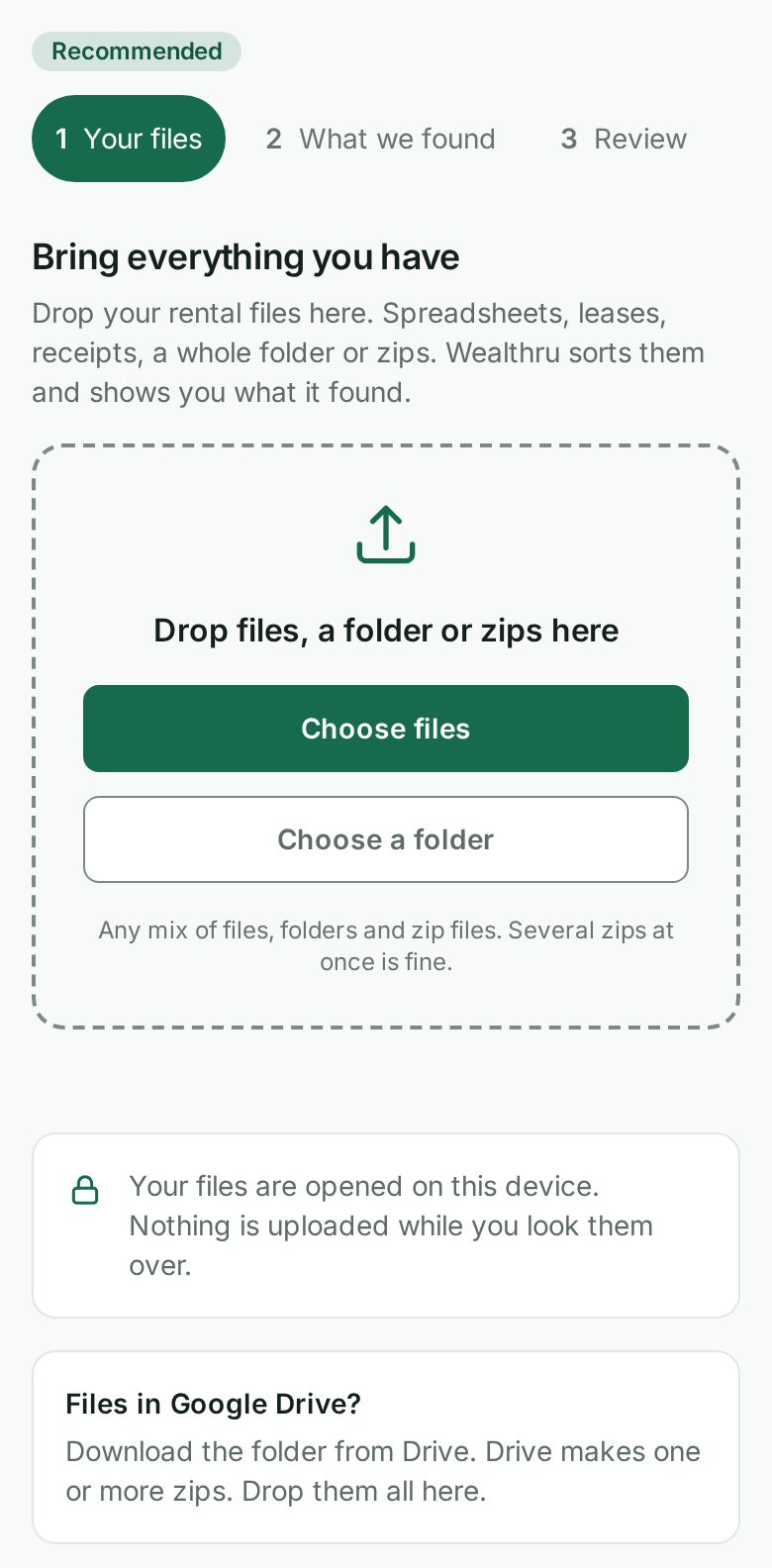
You can drop loose files, a whole folder, or zip files, in any mix. Several zips at once is fine.
Files in Google Drive? Download the folder from Drive. Drive makes one or more zips for a large folder. Drop them all here, together.
What a drop can hold. Up to 500 files, each up to 25 MB, and up to 200 MB once everything is unzipped. Wealthru does not open a zip inside a zip (unzip it and drop its files), a password protected file (save a copy without the password), or a program or script. Each one is listed under Files we could not take with the reason, and nothing in it is read. System files such as .DS_Store are skipped and counted.
Steps
- Drop your files. Drag them onto the box, or use Choose files or Choose a folder. Your files are opened on this device. Only the files you mark Keep as a document are uploaded, after you confirm the import. Private papers are never uploaded.
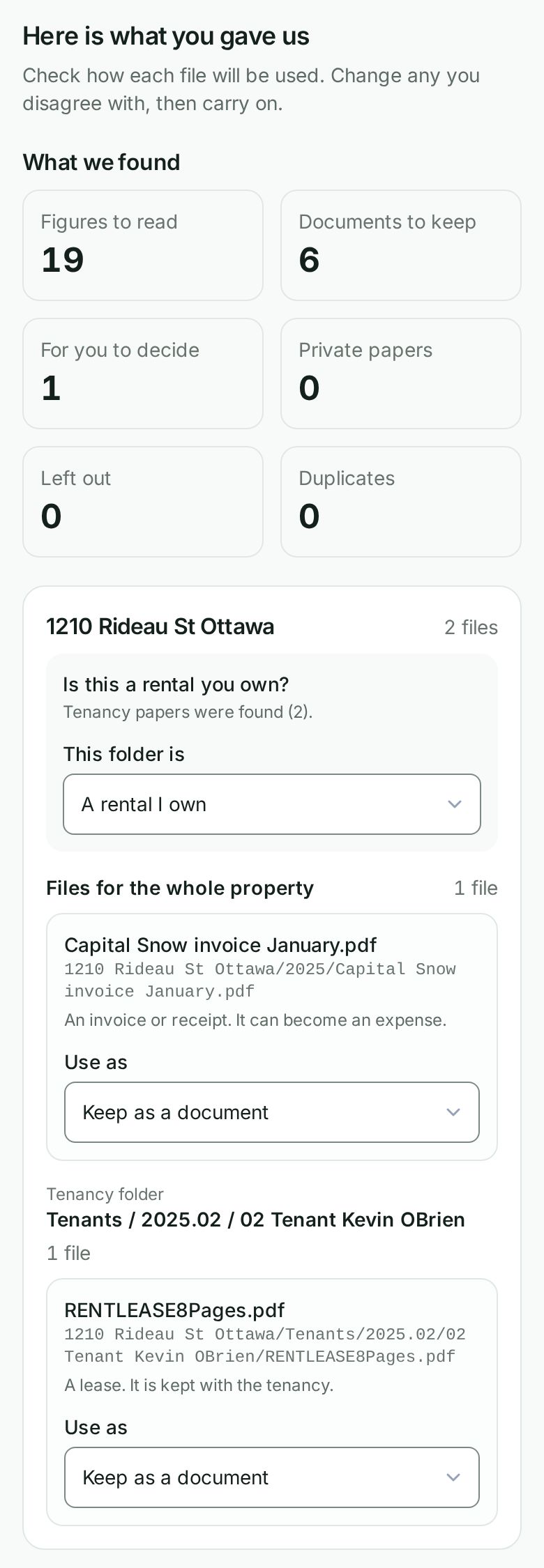
- Check what we found. The list is grouped by property folder, then by tenancy folder. Each file has a Use as choice: - Read its figures. A spreadsheet or export Wealthru reads for buildings, tenancies and money. At least one file needs this for there to be anything to import. - Keep as a document. A lease, receipt or bill. It is not read for figures. It is uploaded and filed after you import (see below). - Decide later. Wealthru could not tell. It is left out until you choose. - Private, do not upload. ID, pay stubs, credit reports and bank papers. See below. - Leave it out and Duplicate, leave it out. Not used.
Change any choice you disagree with. Use the suggestion puts back Wealthru's guess. Each property folder also asks what it is, for example A rental I own or A place I rented myself. Answering A place I rented myself or Not a property leaves that folder's files out. When the list looks right, choose This looks right.
- Answer any questions about how your files are written. If your dates could be read two ways, Wealthru asks whether they are written day first, month first or year first, rather than guessing.
- Review what comes across. The Check what comes across screen shows each building with its units, tenancies and money. Answer every question on it (see below), then choose Confirm these figures.
- Import. The Ready to bring it in screen shows the totals. Choose Import now. When it is done you see Your import is in and a list of what was created.
The review, in detail
- First month Wealthru bills. This is the cutover. Everything before it comes in as read-only history. Each tenancy opens at what it owed the day before. Wealthru suggests a month, and you can pick an earlier one. A money line on or after the cutover is a question, so pick a later month or fix the file.
- Opening balances. Each tenancy shows whether your files agree with the old system's own figure, such as a rent roll's past due amount or a ledger's ending balance. When they differ, you choose Your lines, The old system, or Another amount. When the files have no figure at all, Wealthru asks what was owed. It never assumes zero.
- Credits. A tenant who prepaid opens with a credit of that amount, and it comes off the next rent. To type a credit yourself, put a minus sign in front, like -250.00.
- Former tenants. A tenancy that has ended and still owes is kept as a former tenant balance you can collect or write off. One that is owed money back keeps it as a credit.
- Expenses. Expenses come in with the same import, under each building, in their tax category. When Wealthru is not sure of a category it asks you to pick one, it never guesses. A monthly summary figure is used only for a month that has no line by line expenses, so nothing is counted twice. Turn off Bring expenses in with this import to leave them all out.
- Which file wins. When two files carry the same line, it is kept once, from the file higher on the list. Move a file up to trust it more. Every place the files disagree shows both values, the one used, and why.
- Leave a tenancy out. It is not created, and its money lines stay out too.
- People already in your account. When an imported person has the same email as a tenant you already have, the tenancy card shows Use <name>, already in your account and picks it for you, so the person is not created twice. When only the name is the same, it is shown but not picked, so choose it yourself if it is the same person. Choose Add as a new person to create them anyway. Using an existing tenant only adds them to the imported tenancy. Their name, email and phone in your account stay as they are. An archived tenant is listed but cannot be used, so restore them first from Archived items if you want the import to use them. The People count says how many are new and how many are already in your account, and the result says how many were matched.
What happens next
- Nothing is sent to your tenants. No welcome, no receipts for old payments, no reminders and no late fees. Consent from your old software does not carry over. Invite each tenant from their page when you are ready.
- If you are the account owner, the money counts right away. If a manager ran the import, or our team ran it for you, the opening balances, credits and expenses wait for the owner. The result says Waiting for approval. The owner can choose Approve this import to approve all of it at once, or approve each entry under Approvals. Until then, that money is not in your books.
- Where it shows. Your buildings are on the Properties page and your tenancies on the Leases page. Each imported lease has an Imported history tab with the lines from before the cutover, read only. An opening credit shows as Credit carried in on the lease. A former tenant who owes shows on Overdue rent and on their lease, where you can record what they pay or write the balance off. To pay back a credit, use Tenant refunds on the lease page.
- Your documents are filed. Right after the import, each file you marked Keep as a document is uploaded from this device and filed. A lease, notice or condition photo in a folder that names the tenant (for example Tenant Priya Raman) goes on that tenancy's lease, under Documents & signing. Everything else goes on its building, under Documents. The result shows Documents filed and Not filed, with each file and why. Keep the page open until it is done. If an upload fails, choose Try again.
- When a document is not filed. A file in no building's folder is not guessed onto one, so add it from the building's Documents tab. A file that is not a PDF, an image, an office document or a text file, or that is larger than 25 MB, is not uploaded. If you closed the page before every file was filed, Recent imports shows how many are on the import, and you can add the rest from the building's Documents tab.
- Come back later. Your files stay on this device, so if you leave part way through, drop the same files again. Your answers come back with them. A finished import comes back with its result and Undo this import even without the files.
Undo the whole import
On the result, choose Undo this import, then Undo the import. It removes everything the import created, the buildings, tenancies, people, opening balances, history, expenses and the documents it filed. Anything you added yourself stays, and so does a tenant you matched to the import, who only loses the imported tenancy.
Undo is refused, and nothing is changed, when:
- money was recorded after the import, for example a payment. Remove that first, then try again.
- a closed accounting period is in the way. Reopen it, then try again.
- importing has been switched off for your account.
Undo is also offered under Recent imports on the import page, which lists every import from other software on your account. It works from any device, so you can still undo or approve an import after you choose Start a new import, or from another browser.
What is not imported
- Private papers are never uploaded and never sent to an AI model, even if you mark one Keep as a document. They stay on your device. This follows Canadian privacy law (PIPEDA). To keep a screened tenant's paper, add it yourself from the tenancy's Documents & signing tab.
- Your spreadsheets and exports. When you choose Import now, only what you confirmed on the review is sent. The files read for figures are never uploaded. The only files uploaded are the ones you marked Keep as a document.
- Monthly income totals. Each tenancy opens at what it owed, so the old system's rent totals would count the rent twice.
- Old rent history in your books. Lines from before the cutover are kept read only. They do not move any balance.
Troubleshooting
- None of these files is marked as rent records. Mark at least one spreadsheet as Read its figures, or drop other files.
- Some files could not be read. Everything else is on the review. Fix those files and drop them again.
- This import is larger than your plan allows. Choose See plans and change your plan, or leave some buildings out.
- A closed period is in the way. Reopen the period, or pick a later first month to bill.
- The figures differ from the old system. Pick the right figure for each tenancy on the review. The import waits until you do.
Was this helpful?