For property managers
Keyboard shortcuts
Move around Wealthru faster with a few simple keyboard shortcuts. They are optional and they never get in the way of typing.
Before you start
- Shortcuts are free on all plans for managers and owners.
- They work on a computer keyboard. On a phone, use the buttons and the search icon instead.
- Shortcuts are ignored while you are typing in a box, so you can never trigger one by accident.
See the full list any time
- Press the question mark key.
- A small panel opens listing every shortcut.
- Press Escape to close it and carry on where you were.
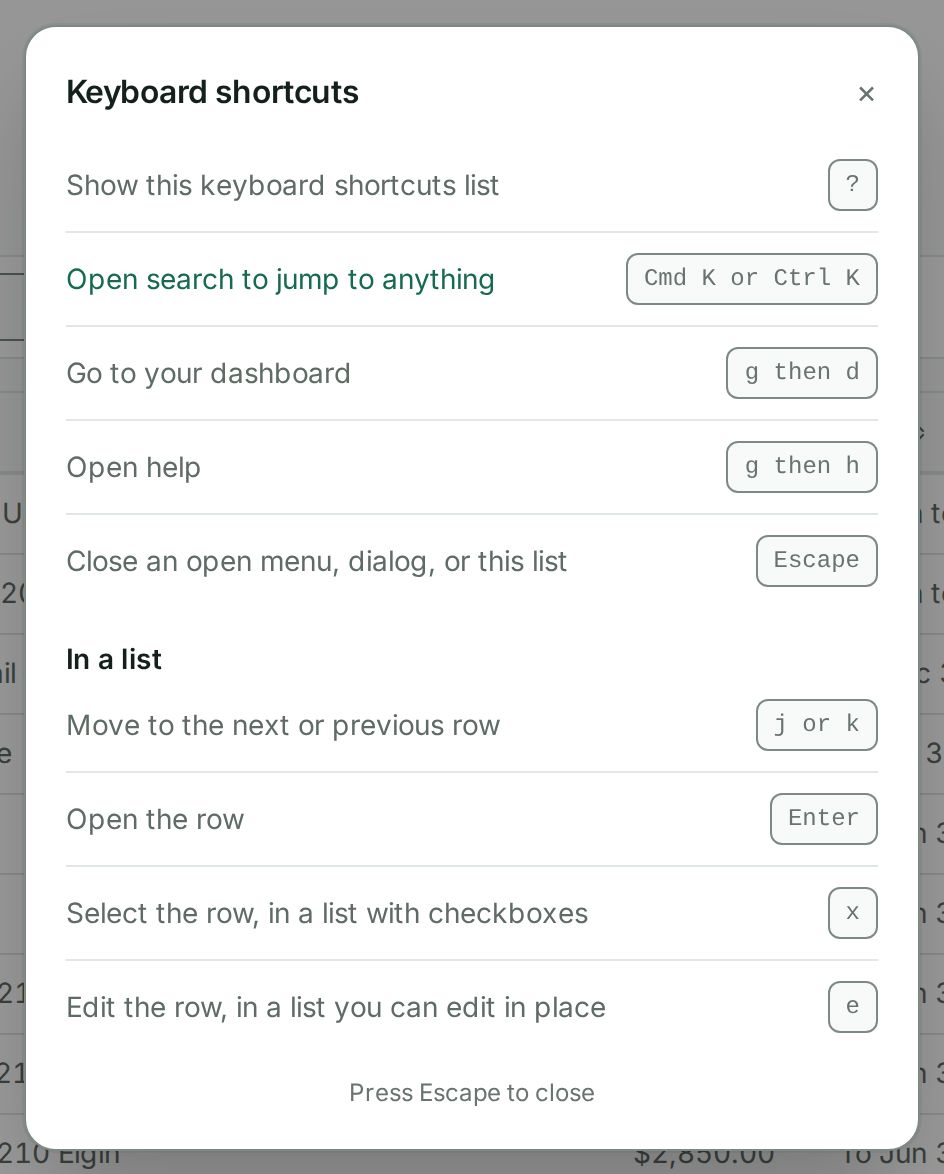
The shortcuts
- Press the question mark key to open the shortcuts list.
- Press Cmd K on a Mac, or Ctrl K on Windows or Linux, to open search and jump to anything.
- Press the letter g then the letter d to go to your dashboard.
- Press the letter g then the letter h to open help.
- Press Escape to close an open menu, dialog, or the shortcuts list.
Work through a list with the keyboard
On a computer screen (1024 pixels wide or more), the lists of properties, leases, tenants, maintenance requests, messages, payments and the other lists you work through take a few more keys. They work once you are in the list, so they never fire by accident anywhere else on the page.
- Press Tab until you reach the first row of the list.
- Press j to move to the next row, and k to move to the previous one. The row you are on is outlined in green. In a table it also has a green bar down its left edge.
- Press Enter to open the row, just as if you had clicked it. On Tenants, Maintenance and Messages on a wide screen it opens beside the list, so you keep your place. Press j again to move to the next row, and Enter to open that one instead.
- On a list with checkboxes (your Properties list), press x to tick or untick the row. The bar with what you can do to the ticked rows appears above the list, as it does when you click a box.
- On a list you can edit in place, press e to jump to the row's controls. On Maintenance that is the request's status. Press Space (or Alt and the down arrow) to open its list, choose with the arrow keys, then press Enter. On Team it is a manager's tier, which works the same way.
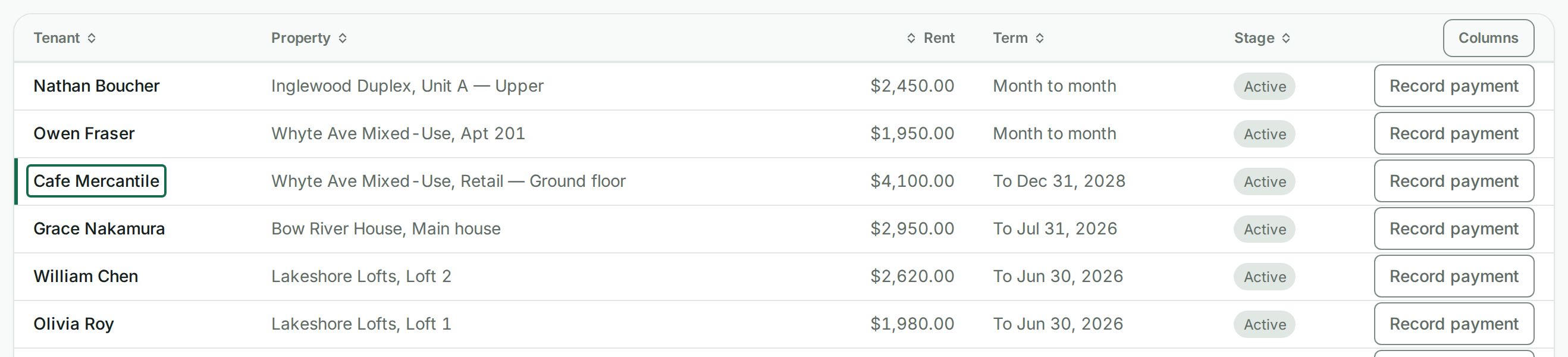
These keys never do anything you could not do with a mouse or the Tab key, and they never move you out of the list by surprise: at the top or bottom of a list they stay where they are. They do nothing on a phone or a tablet held upright.
What happens next
- The two-key shortcuts are quick taps. Press g, then the next letter right after.
- Search is the fastest way to reach a specific tenant, property, lease, or document. See Find anything with search for more.
- For moving around without a mouse at all, including skipping past the menus and switching sections with the arrow keys, see Keyboard and screen reader access.
- On a computer the pages themselves are in the sidebar on the left. See Move around Wealthru on a computer with the sidebar.
Troubleshooting
- A shortcut did nothing. Make sure your cursor is not inside a text box. Click an empty part of the page first, then try again.
- The list will not open. Some browser extensions capture keys. Open the list from the help menu if the question mark key is being intercepted.
- j or k did nothing. Press Tab until a row of the list is highlighted, then try again. The keys work only once you are in the list, and not while a box, a menu or a dialog is open. They work on a screen 1024 pixels wide or more.
- e did nothing. Only rows you can change in place have something to edit. A closed maintenance request, for example, has nothing to change from the list. Open it instead.
Was this helpful?