For property managers
Move around Wealthru on a computer with the sidebar
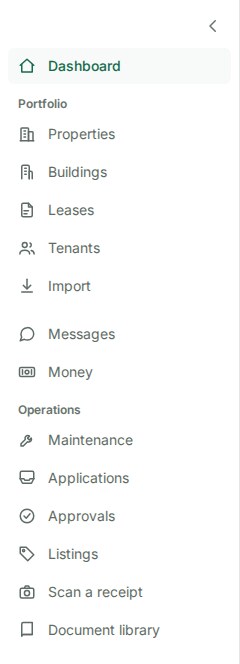
On a computer or a tablet held sideways, everything you can open in Wealthru is in the sidebar on the left, grouped the same way as the menu on your phone.
Find a page
- Look at the sidebar on the left. Your dashboard is at the top, then each group: Portfolio (properties, leases, tenants, import), then Messages and Money, then Operations (maintenance, applications, listings and more).
- Click the page you want. The page you are on is highlighted, so you can always see where you are.
What you see depends on your role and your plan. An owner sees their properties, statements and messages. A tenant sees their home, payments and maintenance requests. A page your plan does not include is either hidden or shown with a lock you can tap to see what it does.
Make the sidebar narrower or wider
Click the arrow at the top of the sidebar.
- Narrow shows only the icons, which gives the page more room. Hover over an icon to see its name.
- Wide shows the names beside the icons.
On a smaller computer screen the sidebar starts narrow, and on a larger one it starts wide. Once you choose, Wealthru remembers your choice on that computer. If your browser blocks saved site data, the sidebar still works, it just goes back to its starting width the next time you open Wealthru.
Open a tenant, request or conversation beside its list
On a wide screen (1280 pixels or more), clicking a row in Tenants, Maintenance or Messages opens that record in a panel to the right of the list, so you keep your place in the list.
- Everything you can do on the record's own page is in the panel: edit details, change a request's status, add a comment, reply to a message.
- While the panel is open, the list shows only the titles, so you can move from one record to the next. The rest of the list steps aside until you close the panel: the other columns, the row controls (on Maintenance, the status, priority and Reopen controls), the sort headings and the Columns menu. Use the same controls inside the panel, or close it to get the full list back.
- Click another row to switch to it. The row that is open is highlighted.
- To close the panel, click the X at its top, press Esc, or use your browser's Back button. You land back on the row you had open.
- The address in your browser changes when the panel opens, so you can copy it, share it with a teammate or reload the page, and the same record opens beside the list.
- Open full page at the top of the panel shows the record on its own.
On a smaller screen, and on a phone or tablet, clicking a row opens the record's own page, as it always has.
Move through a list without the mouse
In any list, press Tab to reach its first row, then j and k to move between rows and Enter to open one. On Tenants, Maintenance and Messages it opens beside the list, the same as a click. Press the question mark key to see every key, or read Keyboard shortcuts.
Where everything else is
The bar across the top still holds search (press Cmd K on a Mac or Ctrl K on Windows), your notifications, the New button, and the menus for Settings, your account and Help.
On a phone
Nothing changes on a phone or a tablet held upright. The bar at the bottom of the screen has your most used pages, and More opens everything else.
Was this helpful?