For property managers
Filter and download the rent roll and arrears
Reports turns what you have recorded into a table you can filter and download. Open it from the Reports page. Each report opens with no filter, shows its totals, and has a Download PDF and a Download CSV button.
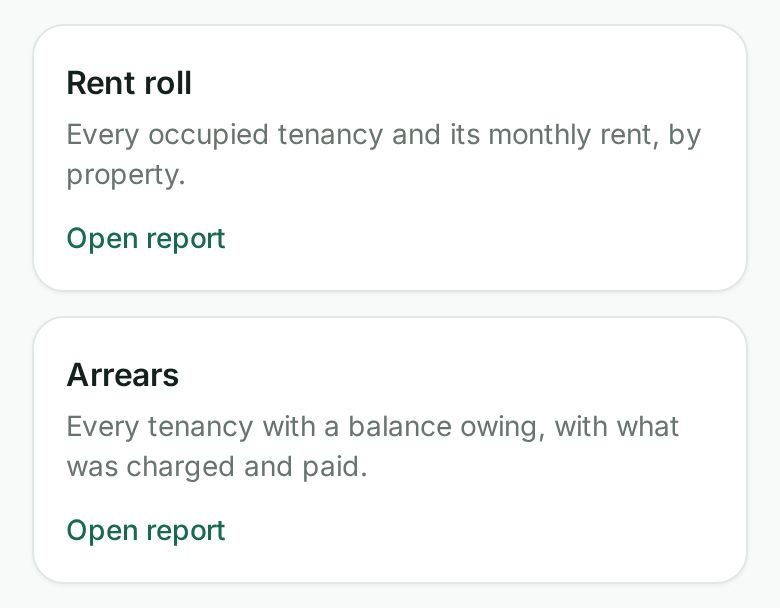
The reports you can run
- Rent roll: every occupied tenancy and its monthly rent, grouped by property with a subtotal for each. Filter it by property, by an as-of date, and by status (active, month to month, notice given, and so on).
- Arrears: every tenancy with a balance owing, with what was charged and what was paid. Filter it by property and by the balance owing, at least or at most an amount.
Their totals are the same figures the Reports page shows above them, to the cent.
Filter a report
The filters sit above the table. Choose what you want and select Apply filters. Clear filters goes back to the whole report.
- Properties: tick one or more. Leave them all unticked for every property.
- As of: a day to read the rent roll at. Leave it empty for today. A past date picks which term of a renewed tenancy counts. It does not bring back a tenancy that has since ended.
- Balance owing: type a dollar amount, like 500 or 500.50.
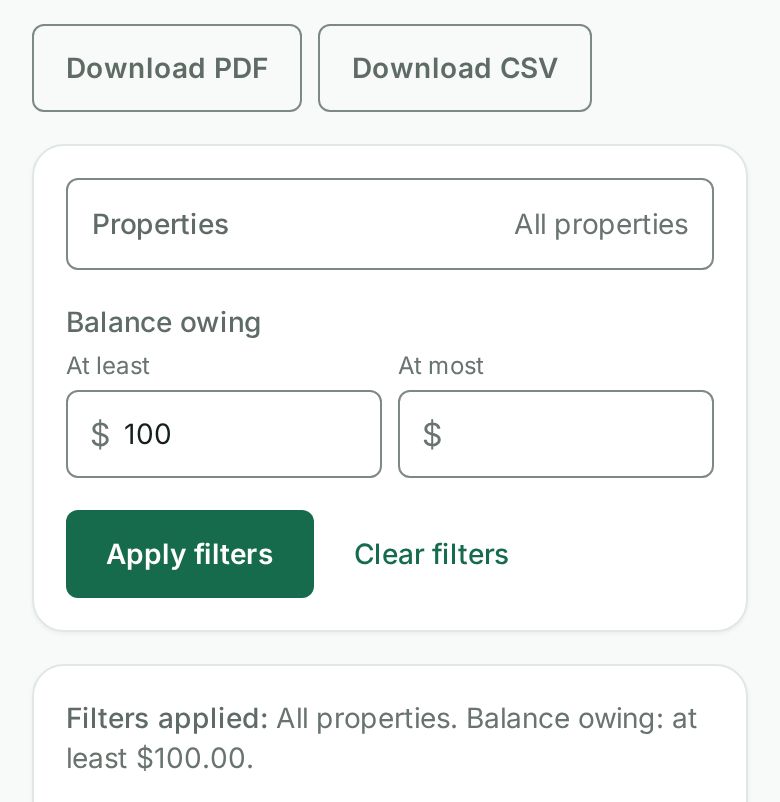
The filters are kept in the page address. Copy it and the same report opens with the same filters, so you can send your accountant a link to exactly what you are looking at.
A property manager who looks after some of the properties sees only those properties in every report.
Download it
Download PDF prints exactly what is on the screen: the report's title, who it was prepared for, the filters applied in words, when it was generated, the rows, a subtotal for each property and the totals. A money report also carries "Tooling, not legal or tax advice."
Download CSV gives the same rows as a spreadsheet, with plain amounts a spreadsheet reads as numbers.
A very long report lists its first 2,000 rows. The totals still cover every row, and the page and the PDF say so. Narrow the filters to see the rest.
Ask for it by name
With Talk to Wealthru turned on, say or type the report you want:
- "show me the rent roll"
- "rent roll for Maple Apartments"
- "arrears report over $500"
Wealthru reads the report and any filter you said in plain words (a property's name, an amount after "over" or "under"), shows the totals, and opens the report with those filters applied. Anything you did not say stays as the report's default. If you say which report you do not want, or two amounts that cannot both be true, Wealthru asks instead of guessing.
You can also ask a report a question, like "which units are vacant" or "who is more than 60 days behind", or have it emailed: "email the arrears report to my partner" sends its PDF once you have checked who gets it. See Ask about your net worth and cash flow, and email a PDF.
En français
Ouvrez Rapports, choisissez un rapport, filtrez-le puis Télécharger le PDF. Vous pouvez aussi dire « rôle des loyers » ou « rapport des arriérés de plus de 500 $ ».
Other reports pages
Tenants have a Reports page of their own with their payments, charges, rent paid and repair history. Platform admins have one on the console. The accountant reports (the trial balance, the general ledger detail, GST/HST and the year-end package) are on this page, and an accountant share link can open them for one year.
Was this helpful?