For property managers
Scan a receipt or statement
Snap a photo or upload a PDF of a receipt and Wealthru drafts the expense for you. You review every field before anything is saved. You can also scan a mortgage, insurance, property tax, or valuation statement to draft the matching details.
This is a tooling helper, not tax advice. Always check the numbers it pulls out.
Before you start
- You need to be a property manager, account owner, or admin.
- Receipt scanning is on by default. If you do not see "Scan a receipt" in the menu, it has been turned off for your account, so ask your admin to turn it back on.
Scan a receipt into a draft expense
- Go to Scan a receipt in the menu.
- Choose the property the expense belongs to.
- Pick a receipt file. You can use a photo (JPG, PNG, WebP, HEIC) or a PDF, up to 15 MB.
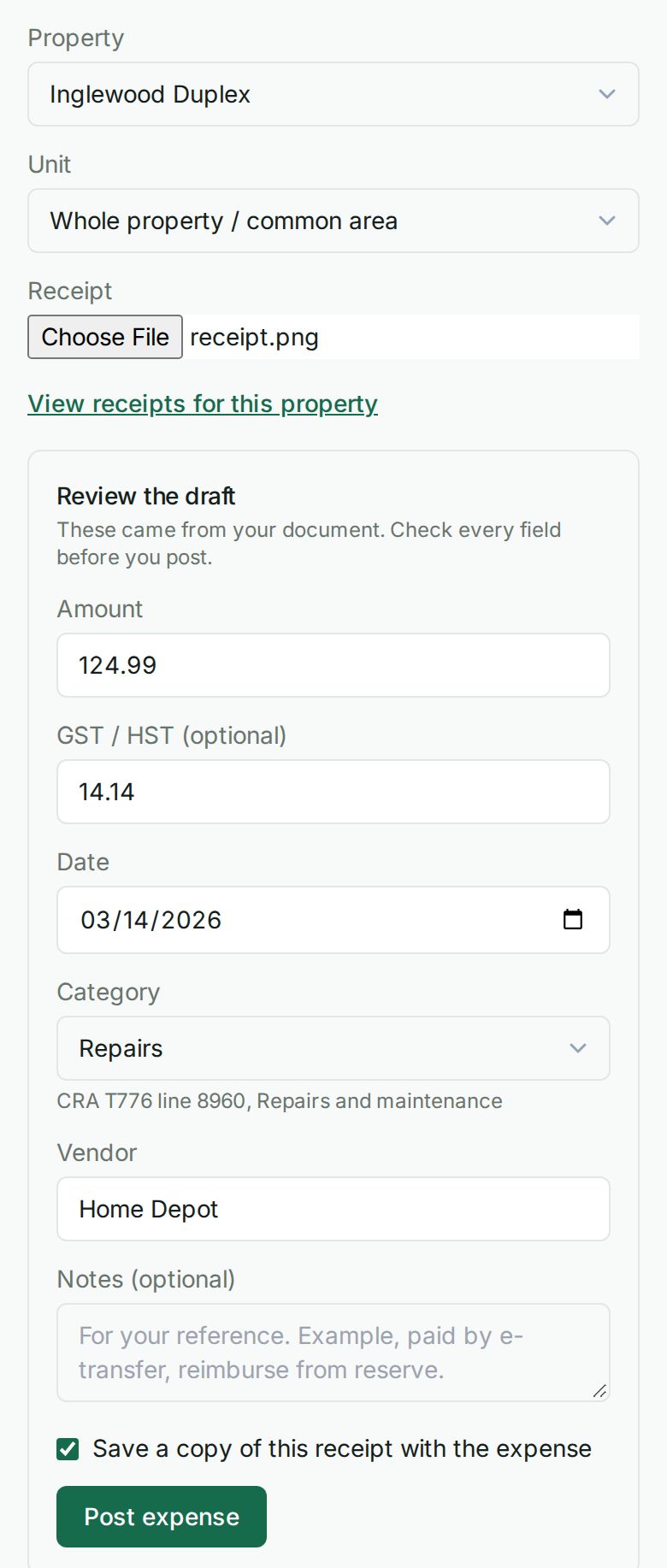
- Wealthru reads the receipt and shows a draft with the amount, date, vendor, a suggested category, and the matching CRA T776 line.
- Review and edit every field. Anything we are unsure about is flagged with a note to check it.
- Choose Post expense.
Scan it by saying it
Press Cmd K (or tap Say or type on a phone) and say scan a receipt. Pick the property, then take or choose the photo. Wealthru reads it the same way this page does, then asks what kind of expense it is. It always asks, because the kind decides the tax line. The amount, the GST or HST, the date and the store fill in when the scan is sure of them, marked Read from the photo, and you can change any of them. When it is not sure of the GST or HST it asks, and you can skip it. Check the card and choose Yes, record it. The photo is filed with the expense. Do it on the page opens this page on the property you chose.
What happens after you post
- If you are an operator, the expense is held for approval. It does not count in your statements or taxes until an approver signs off. This is the same approval step a typed expense uses.
- If you are an approver or owner, the expense posts right away.
- Either way the money goes through the normal expense path. Scanning never moves money on its own.
Is it a repair or an improvement (capital)?
When you add or edit an expense, you can mark it as a capital improvement instead of a current repair. There is a "Repair or improvement?" choice on the form.
- A repair keeps the property the way it is. It is deducted this year. Example, a $50 furnace filter or a plumber fixing a leak.
- An improvement is capital. It is added to the property's cost base, not deducted this year. Example, a new $5,000 roof, a furnace, or an addition. When you mark it capital, pick a CCA class (most building improvements are Class 1, appliances and equipment are Class 8).
A capital improvement is kept off your current-expense total on the T776 and shown on your capital schedule instead, and it is added to the cost base used when you record a sale. You can change a repair to an improvement later from the Edit form. This is a tooling helper, not tax advice. Check with your accountant if you are unsure.
Scan a statement
You can also scan a mortgage, insurance, property tax, or valuation statement right from the property page.
- Open the property and go to the Mortgage, Insurance, Valuation, or Financials tab.
- Choose the scan button on that tab, for example Scan a mortgage statement to fill this in, and pick a photo or PDF.
- Wealthru shows the fields it found (for example a rate, balance, and renewal date for a mortgage), each with a check on anything it is unsure about.
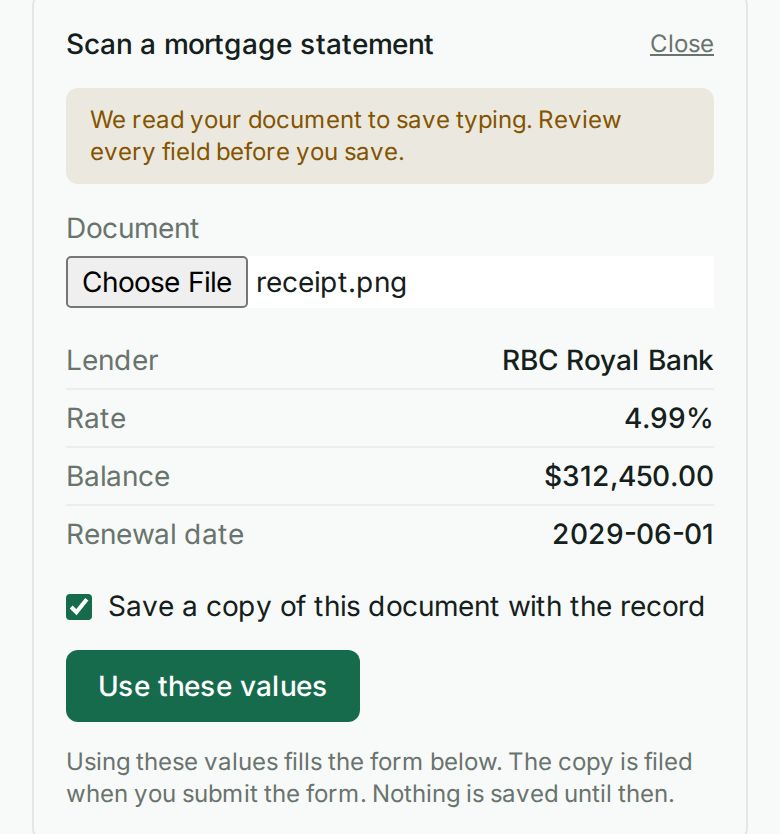
- Choose Use these values to fill the form on that tab. Review every field, then save it the normal way. Scanning never changes a record on its own.
- Leave Save a copy of this document with the record ticked to keep the original file in the property's documents for your records. The copy is filed when you save the form. It is filed under the right category and is never visible to tenants.
A mortgage statement shows your current balance, not the original loan amount, so the add-mortgage form fills the lender, rate, and renewal date and you enter the rest.
Good to know
- Low-confidence fields are flagged so you never trust a guess by accident.
- If the document cannot be read, you still get the form and can type the expense by hand.
- Amounts are kept to the exact cent.
Related
Frequently asked questions
Does scanning post the expense on its own?
No. Wealthru only drafts the expense. You review and edit every field, then choose Post expense. If you are an operator, it then waits for an approver.
Which files can I scan?
A photo (JPG, PNG, WebP or HEIC) or a PDF, up to 15 MB. You can scan a mortgage, insurance, property tax or valuation statement from the property page too.
What if Wealthru cannot read my receipt?
You still get the form and can type the expense by hand. Any field it is unsure about is flagged, so you know what to check first.
Was this helpful?