For property managers
Manage the AI agents connected to your account
You can let an AI agent you already use, like Claude or ChatGPT, look at your Wealthru account for you. The agent signs in through Wealthru, and you decide on a consent screen whether to let it in. It is on for every account, on every plan, including Free.
What a connected agent can and cannot do
- It can read what you can see in that account: your properties and units, leases, tenants, rent owing, charges and payments, maintenance requests, messages, your reports and what needs you today. It gets the same figures Wealthru shows you. A property manager's agent sees only the properties that manager is assigned to.
- Some details are never given to an agent, whatever you can see: a tenant's social insurance number, date of birth, ID documents, screening reports, emergency contact and forwarding address.
- Words a tenant, vendor or applicant wrote are labelled as theirs. A maintenance request, a message from a tenant, an automatic notice that repeats their words, or the name of a file an applicant uploaded reaches the agent marked as written by someone else, so the agent can tell your records from their words. Files rental applicants upload are never found by an agent's search.
- It keeps reading if your account is read-only. If a Wealthru payment fails and your account becomes read-only, your agent can still read, the same as you can.
- Reading changes nothing. When your agent reads Today or a message thread, Wealthru does not mark anything as seen or read for you.
- It can suggest changes for you to approve, on the Pro and Portfolio plans, when the consent screen listed suggesting changes. Tell it in chat what to fix, like "add November's rent" or "record the condo fee". It shows you exactly what will be saved and gives you a link. Nothing is saved until you open that link in Wealthru and tap Approve. A change that moves money asks you to confirm the amount a second time. See Accept, change or deny what your agent proposes.
- It cannot change anything on its own. It cannot record a payment, send a message, delete a record or change a setting. Wealthru refuses every change an agent tries, whatever it asks for. Only you can approve a suggestion, and only in Wealthru, so a message a tenant wrote cannot trick your agent into approving one.
- It acts as you, and only in one account. If you belong to more than one account, it reaches only the one you were in when you connected it.
What an agent reads leaves Wealthru and goes to the company that runs the agent. Only connect an agent you trust.
Connecting an agent
Wealthru works with any agent that can add a remote MCP connector (MCP is the standard way AI agents connect to other services). The address to give your agent is:
https://api.gowealthru.com/api/mcp
You do not need a key or a password. The agent finds Wealthru's sign-in page from that address on its own.
If you connected an agent before November 14, 2026, it used an older address and has stopped working. Remove Wealthru from your agent and add it again with the address above.
- In your AI agent, add a connector or tool and paste the address above. The agent opens a Wealthru page in your browser.
- Sign in if Wealthru asks.
- Read the consent screen. It shows the agent's name exactly as the agent registered it, the account, who you are signed in as, the full address it sends you back to, and what the agent can and cannot do. The agent chose its own name and Wealthru has not checked it, so check the address too.
- Tap Allow to connect it, or Cancel to send it away with nothing.
Answer in the same browser your agent opened. If the request was started somewhere else, for example a link someone sent you, tapping Allow connects nothing and Wealthru says so. Start again from your own agent.
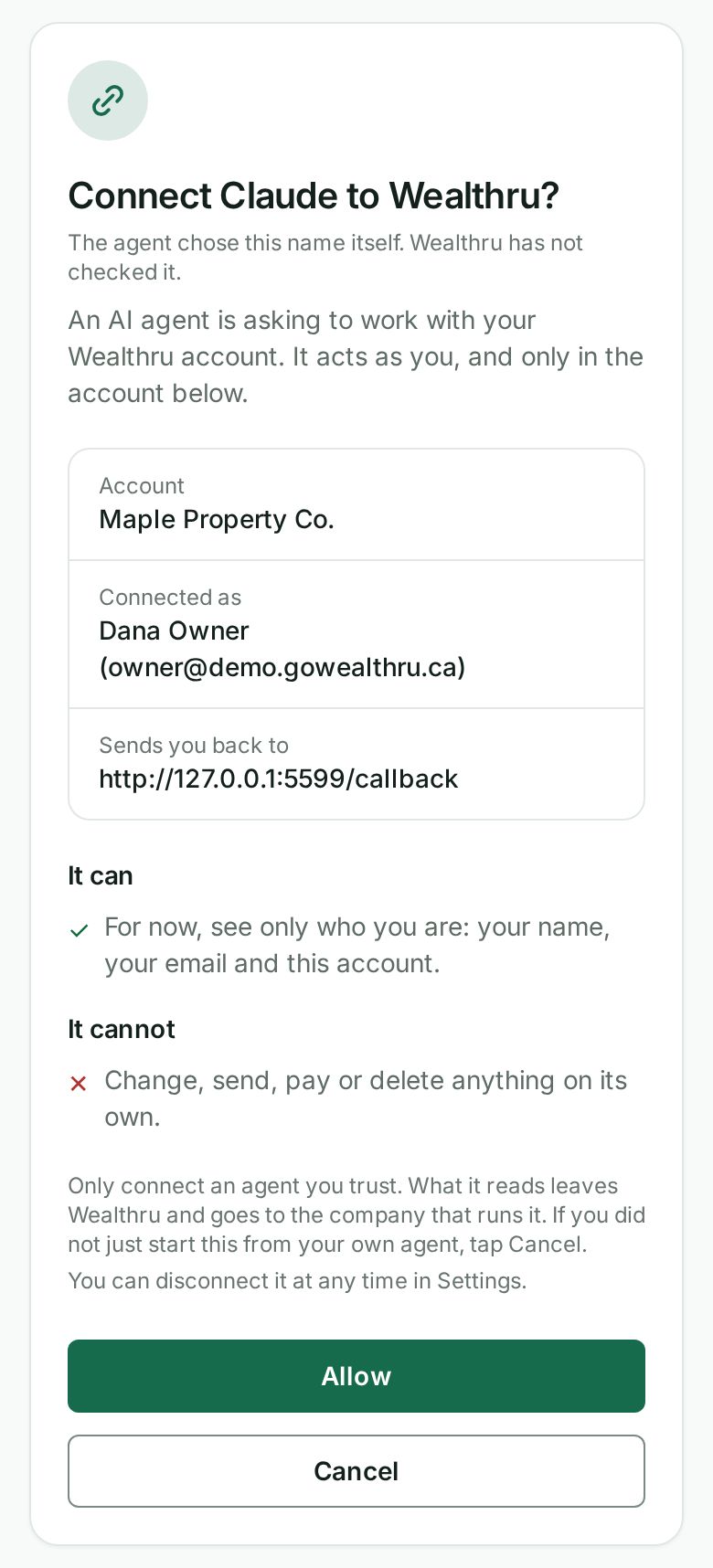
Only an account owner or a property manager can connect an agent.
Seeing your connected agents
Go to Settings, then Manage connected agents.
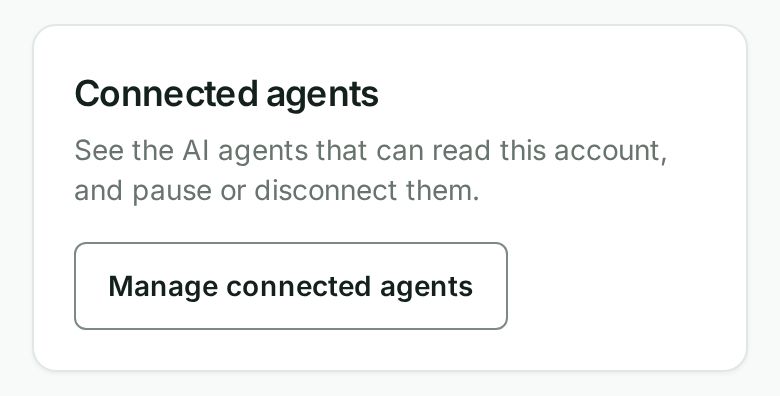
Each agent shows who connected it and when, when it last used your account, and what it may do. The account owner sees every agent in the account. A property manager sees their own.
An agent that has not used your account for 30 days is disconnected on its own. Connect it again from the agent if you still want it.
Pausing or disconnecting an agent
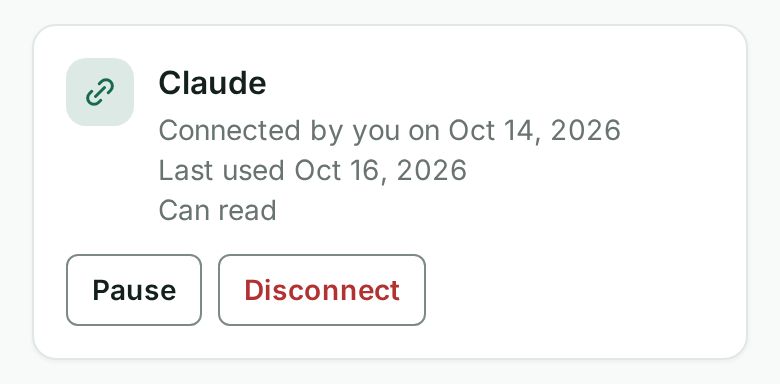
- Pause stops the agent right away. Its next request is refused. Resume lets it back in.
- Disconnect removes its access for good. To use it again, connect it again from the agent.
Sign out everywhere and changing your password also disconnect every agent you connected.
Was this helpful?